Verifone P630 readerPublic preview
Learn how to set up the Verifone P630 reader.
Public preview
Verifone reader support is in public preview for the US and CA. To join the preview, you must contact the Sales team to order the applicable reader.
The P630 is an Android-based smart reader for countertop use. The Stripe Terminal SDK connects to this reader over the internet or LAN. This reader is compatible with the following integrations:
- JavaScript SDK
- iOS SDK
- Android SDK
- React Native SDK
- Server-driven
For the P630, we recommend the server-driven integration, which uses the Stripe API instead of the Terminal SDK. To view the reader’s parts and features, see the P630 product sheet.
Turn the reader on and off
Connect the reader to power by connecting the provided power cable onto the back of your P630 reader. Remove the back cover to access the connection point. Connect the opposite end of the cable to the provided dongle and power adapter, and plug the power adaptor into a power outlet. The P630 requires 110-240W of power to operate properly. We recommend you use Verifone power adapters and cables for the charging and operation of the P630 and its accessories. Using alternative power adapters or cables might result in failure modes, including inadequate P630 charging, and can invalidate your product warranty.
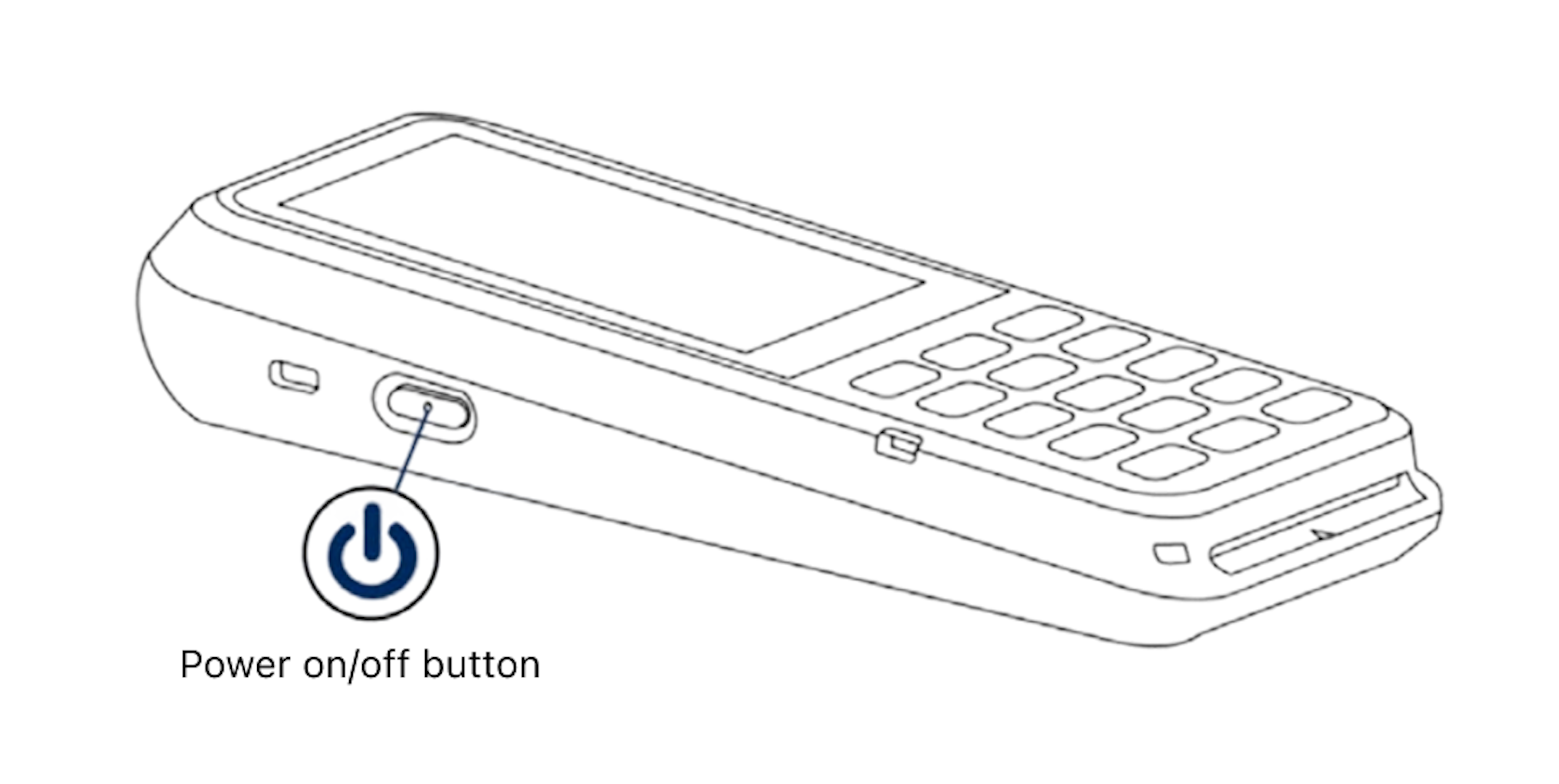
Power button
Access settings
To open the settings menu, swipe right from the left edge of the reader screen to reveal a Settings button. Tap the Settings button and enter the admin pin 07139. From here, you can update your WiFi settings or generate a pairing code for device registration. Battery status appears at the top right of this screen. To close the settings menu, touch the back arrow in the top left corner.
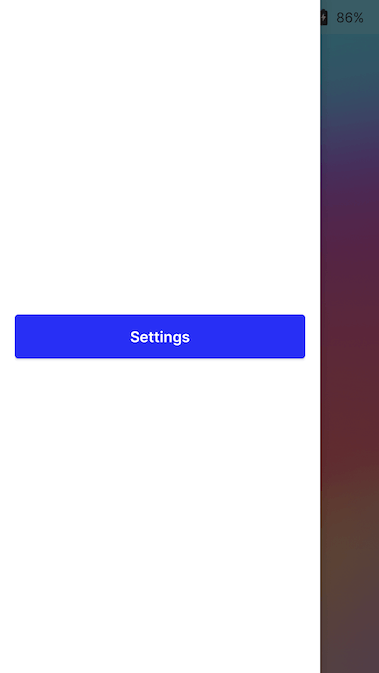
Settings button
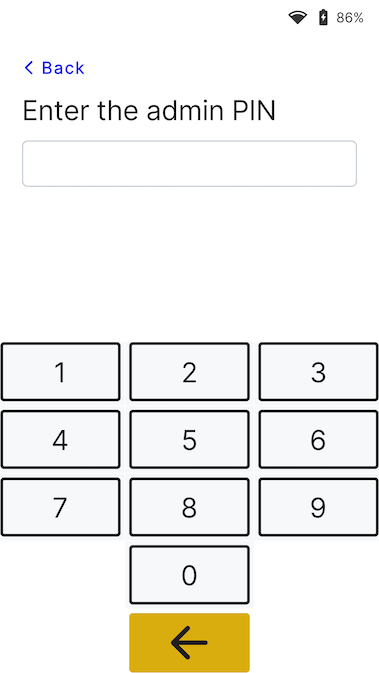
Admin PIN screen
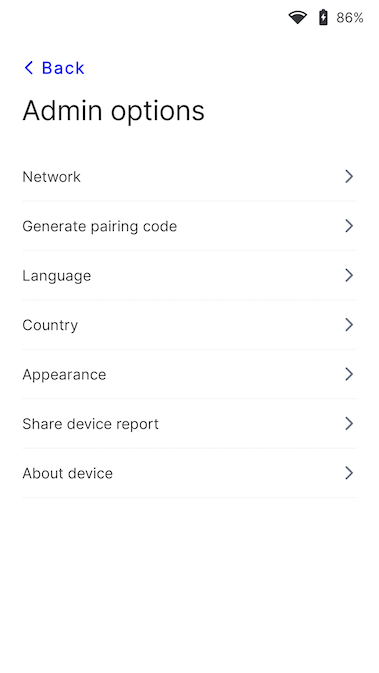
Settings menu
Connect the reader to the internet
Because the P630 is a smart reader, its reader software communicates directly with Stripe. The P630 can connect to the internet using WiFi or cellular data. Your point of sale application communicates with the reader through either a LAN (using a Terminal SDK) or the internet (using the server-driven integration).
When communicating with the reader through the LAN, you must connect the reader to the same local network as your point of sale application. If you’re running into issues connecting your reader to the internet, see the P630 troubleshooting guide.
WiFi
To connect to WiFi or switch networks, go to the network and WiFi settings, choose the network, and connect. Attempting to join a new network disconnects the reader from any existing wireless connection. To learn more about supported WiFi networks, see Network requirements.
Ethernet
Ethernet connectivity requires the Orange Dongle, which provides wired 10/100 Ethernet connectivity.
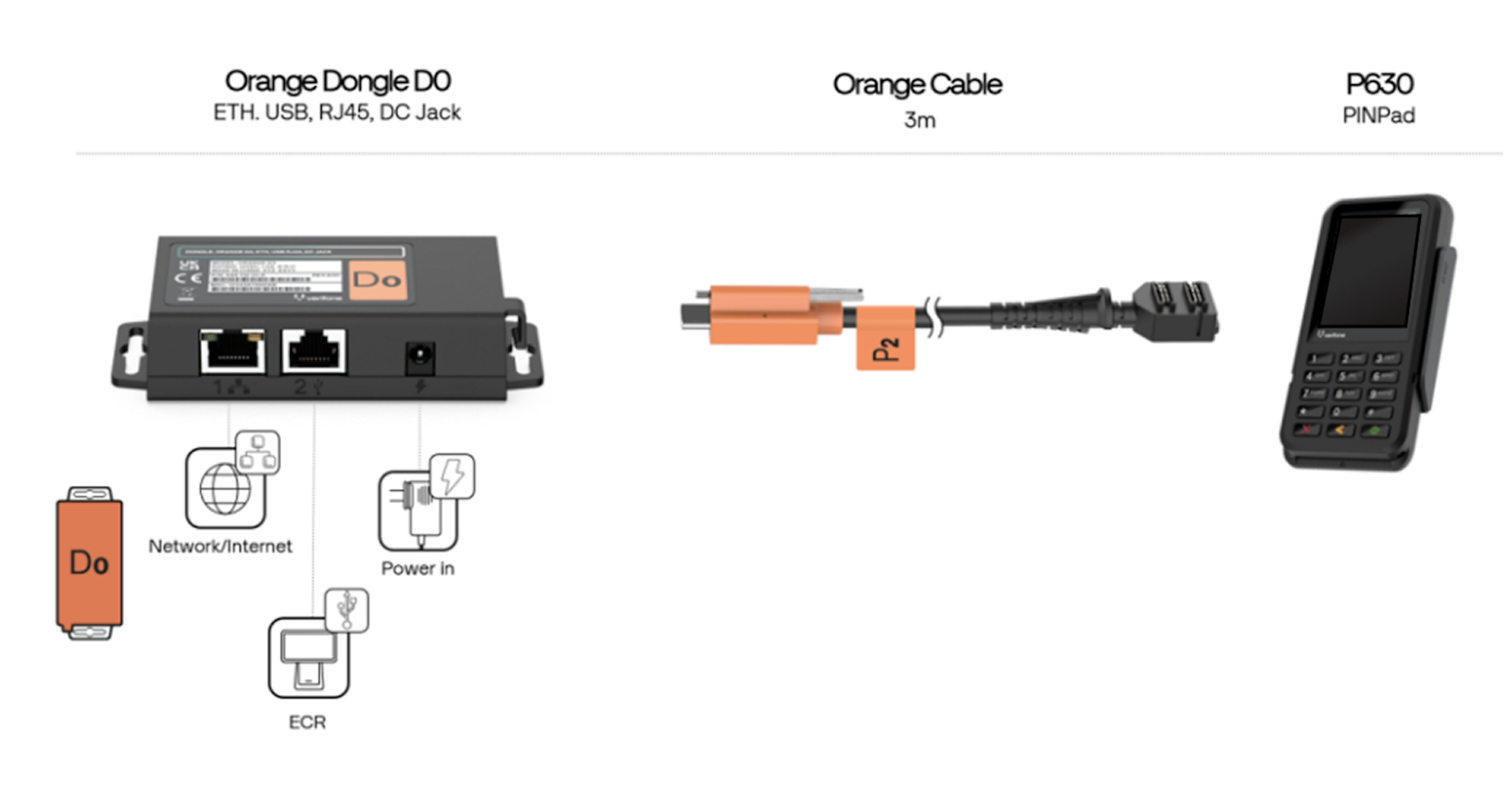
Orange Dongle
Network priority
The P630 reader prioritizes connecting through WiFi if possible.
Change the UI appearance
By default, the UI of the P630 reader uses a light theme.

Welcome screen
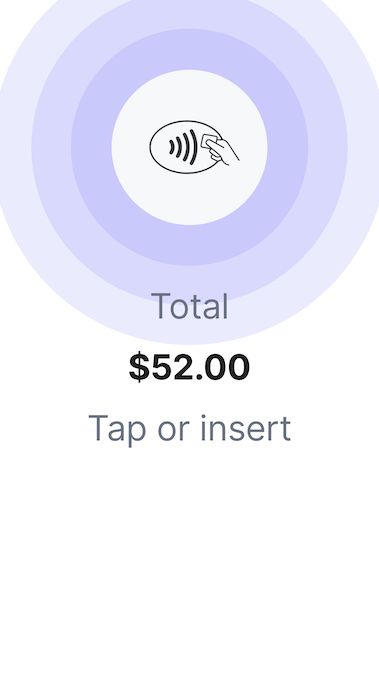
Payment screen
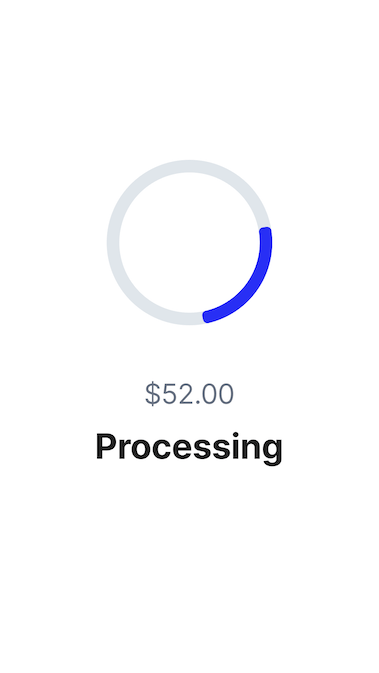
Processing screen
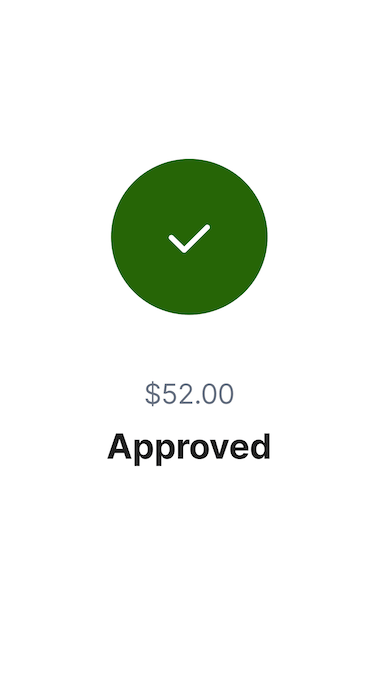
Approved screen
You can change the appearance of the UI to use a different theme in the settings menu. Go to settings, then select Appearance, and select a new theme from the dropdown.
Settings menu
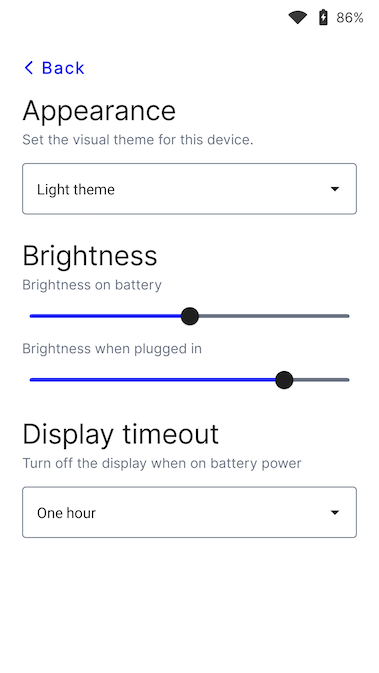
Appearance menu
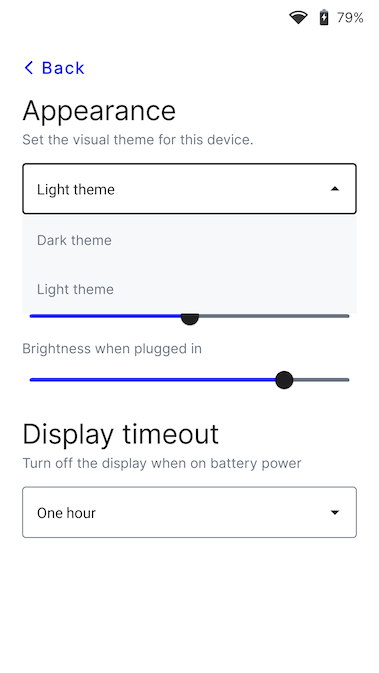
Theme menu
Change the default reader language
Access your settings. Find the language settings, and select the new language. Confirm your changes. You might need to restart the device for the change to take effect.
Custom mounting
You can mount the P630 with or without a mounting plate to a wall or flat surface. To learn more, see the P630 product sheet.